AI Image Combiner: Best Tools and Use Cases for 2026
 Picrevamp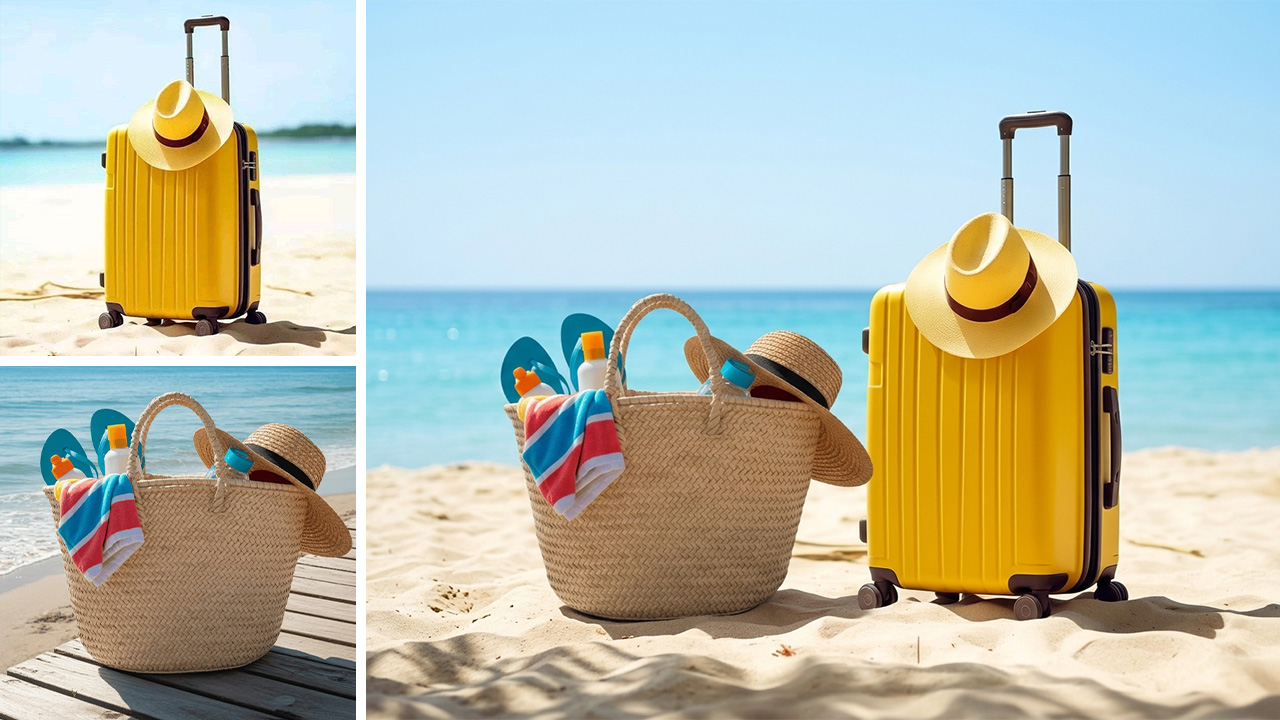
AI image combiners can place products into realistic lifestyle scenes.
AI Image Combiner: Best Tools, Use Cases, and Tips for 2026
Introduction
Combining images previously relied on a lot of experimentation with layers, masking, and lighting. Currently, this process has been made much simpler using an AI combiner that can identify the contents of two or more different photographs and produce a new image according to whatever parameters you specify.
This is one reason that combiners are so popular! Combiners save creators, designers, and marketers time when they want to test new design concepts or make their visual projects more efficient. Combining images with an AI combiner allows you to produce professional-quality images much more quickly compared to manual work.
Common examples of what people create using an AI combiner are as follows: a product displayed in a lifestyle photograph; two people combined; side-by-side comparisons; unique posters; or attractive images for social media that are much nicer than if they just used a collage of images.
This guide is written with the average user in mind, but it will be useful to creators, designers, marketers and small business owners as well.
What is an AI Image Combiner?
An AI image combiner is simply an AI tool that combines two or more images and merges them into a single image. Not just side by side images, it can blend in the people, backgrounds and textures, light and style too giving your image a more realistic, camera shot feel.
There are AI photo combiner tools that let you upload your images and tell them what you want to do with them in simple words. For example, you can tell the tool to put a product on a table at the beach, combine two pictures of people into a family picture, or mix a city view with a fantasy background.
Fotor says its AI image combiner is a tool that lets you combine two or more pictures, control what you want to change in the style of the picture, and use Artificial Intelligence to fuse the images. Fotor also says you can upload pictures of people, backgrounds, or products, and it will do the work for you. The AI image combiner from Fotor is really good at combining images. It makes it easy to use. You can use the AI image combiner to make all sorts of interesting pictures.
How an AI Image Combiner Is Different From a Collage Maker
Actually, the collage maker just distributes your images into different collage styles to arrange them perfectly in one frame, but an ai image combiner blends your images into a single image that looks more real and like it was captured by a camera.
Main job | Places images in a layout | Blends images into one visual |
Best for | Photo grids, scrapbooks, mood boards | Product mockups, group photos, creative scenes |
Lighting match | Manual | Often AI-assisted |
Background blending | Limited | Usually stronger |
Prompt control | Usually no | Usually yes |
Skill level | Beginner-friendly | Beginner-friendly |
Output style | Separate images in one frame | One combined composition |
Canva’s image combiner focuses on grids, templates, cropping, scaling, filters, and design elements, which makes it useful for layout-based designs and collages. Tools like Media.io and Overchat describe a more prompt-based process where users upload multiple images and tell the AI how to fuse them.
Best AI Image Combiner Tools in 2026
There isn’t one best tool for everyone. The right choice depends on what you want to create.
Some tools are best for quick photo merging, while others work better for design layouts. Some options give you more editing control, and others are great for making fast social media visuals.
1. Fotor AI Image Combiner
Fotor is a good choice if you want a simple AI image combiner that lets you guide the result with prompts.
It lets users combine two or more photos into a single frame, and its page says users can upload up to four photos, including portraits, backgrounds, and product shots. It also mentions AI blending for subjects, backgrounds, and styles.
Best for:
- Social media images
- Simple creative blends
- Product and portrait combinations
- Users who want a browser-based tool
Watch out for:
Free access might be limited by credits, usage limits, or your plan. Fotor also reminds you to check image rights and permissions before combining photos.
2. Media.io AI Image Combiner
Media.io is useful if you want to upload several images and describe how they should be combined.
Its AI image combiner page explains that users can upload multiple images and use prompts such as merging into a futuristic cityscape or blending a print onto a car. It also says the AI handles alignment, textures, and lighting.
Best for:
- Creative edits
- Marketing visuals
- Product mockups
- Concept images
Watch out for:
The quality of your prompt matters. The more specific you are, the better your final image will probably be.
3. Overchat AI Image Combiner
Overchat AI is working on prompt-based merging of images. Specify exactly what you would like to be mixed with images, for example insert someone into a background or mix two images.
The page shows examples of use cases such as family and group shots, side by sides, re-mixes, collages, product images, and platform-appropriate aspect ratios.
Best for:
- Group photos
- Family photo composites
- Before-and-after comparisons
- Social media images
- Product and e-commerce. Overchat says its image combiner is a paid tool, but it also offers some free AI tools.
4. Dzine AI Image Combiner
Dzine is a good option if you want to combine images as part of a bigger design workflow.
Its AI image combiner page highlights e-commerce visuals, education materials, holiday photos, and quick generation for time-sensitive projects such as social posts and event materials.
Best for:
- E-commerce visuals
- Product lifestyle images
- Educational graphics
- Fast social media content
Watch out for:
Like most creative AI tools, the final quality can change depending on your source images and prompt.
5. Pixlio AI Image Combiner
Pixlio is designed for common combining tasks, such as putting a product into a scene, placing a subject into a background, bringing people together, or creative blending.
Its page says the tool automatically handles lighting, shadows, scale, and edge blending. It also notes that AI combining is designed for fast, realistic composites rather than perfect preservation of every tiny detail.
Best for:
- Product mockups
- Group photo composites
- Subject-background merging
- Creator content
Watch out for:
Details like text, logos, and facial features can change in complex AI-generated images, so always check the results carefully before using them in public.
6. Canva
Canva isn’t mainly a prompt-based AI image combiner. It’s better for people who want to combine photos into finished designs.
With a Pro account you can access: grids, collage templates, uploads, frames, filters, design elements and background remover. Canva has AI photo-editing tools including Generative Fill allowing you to add, replace or enhance features through prompts.
Best for:
- Social posts
- Presentations
- Ads
- Collages
- Brand graphics
Watch out for:
Canva works well if your final image needs text, layout, and design polish. It might not be the best choice if you only want a realistic photo merge.
7. Adobe Firefly and Photoshop
Adobe is a great option for creators and teams who want more control over their images.
Adobe’s Photoshop AI page says users can generate, refine, and composite images faster with tools such as Generative Fill, Generative Expand, and Harmonize. Adobe also has a guide on using Generative Fill to merge two photos in Photoshop.
Best for:
- Professional photo editing
- Brand campaigns
- Design teams
- Final image polishing
- Users who already know Adobe tools
Watch out for:
Adobe gives you more control, but it can feel more complicated than simple AI photo-combining tools if you just want a quick result.
8. Picsart
The best app for creative editing on mobile is also fully online. You can create collages, overlays, double exposure, blend modes, backgrounds, effects, and even AI editing.
Picsart’s double exposure page explains that the effect combines two images into one artistic picture. It also says users can blend two digital images using AI.
Best for:
- Mobile creators
- Social media edits
- Artistic overlays
- Double exposure effects
- Fast creative visuals
Watch out for:
Some results may look more stylized than realistic, which can be good or bad depending on what you want.
9. Recraft
Recraft is useful for creators and designers who want to make original art by merging different references.
Its AI image-combiner article describes how to combine two images into a single, original design by blending styles, objects, and aesthetics.
Best for:
- Digital art
- Brand concepts
- Posters
- Creative direction
- Visual experiments
Watch out for:
Recraft focuses more on design than on casual photo merging.
10. PicRevamp
PicRevamp is a good choice if you want an all-in-one creative workspace instead of a single-purpose combiner.
PicRevamp does not currently have a dedicated AI Image Combiner tool. But users can achieve a similar result by uploading multiple images in the Studio, choosing an appropriate AI model, and describing the desired image combination in the prompt.
This works better as a workflow you can use, rather than a dedicated tool.
PicRevamp’s site lists image generation, video generation, image templates, upscaling, background removal, image expansion, background changing, face swap, headshot generation, and other creative tools. Its own content also says PicRevamp supports image generation, editing, image-to-image workflows, multiple models, and templates.
Best for:
- Social visuals
- Image-to-image workflows
- Product-style images
- AI portraits
- Users who want multiple models and templates
Watch out for:
Use a dedicated AI image combiner for a purpose-built upload-and-merge experience. Use PicRevamp when you prefer a broader creative workflow with model choice and prompt control.
AI Image Combiner Comparison Table
Quick AI image fusion | Uploads, prompts, simple merging | Free usage may depend on credits | |
Creative image blending | Multiple uploads and prompt-based fusion | Needs clear prompts | |
People, groups, side-by-side images | Strong everyday use cases | Image combiner is paid | |
E-commerce and education visuals | Fast creative and product-focused outputs | Output depends on prompt quality | |
Product scenes and group photos | Guided combine modes | Fine details may shift | |
Canva | Collages and finished designs | Layouts, templates, text, brand assets | Less focused on realistic AI merging |
Adobe Firefly / Photoshop | Professional compositing | Strong editing control | More complex for casual users |
Picsart | Social and artistic edits | Mobile-friendly blending and effects | Can look stylized |
Recraft | Digital art and design concepts | Style and object blending | More creative than practical |
Multi-model creative workflow | Studio, templates, editing, image-to-image | No dedicated AI image combiner tool |
Practical Use Cases for an AI Image Combiner
Product Photos for E-Commerce
An AI image combiner can place a product into a lifestyle background, such as a candle on a bathroom shelf, shoes on a city street, or a water bottle. This helps small brands that can’t do a full photoshoot for every product angle.
Dzine specifically mentions combining product shots and lifestyle images for online stores and product pages. Pixlio also highlights product-in-scene mockups for marketplace listings, social ads, and product catalogs. Creators can use AI image combiners to make thumbnails, Instagram graphics, TikTok covers, Pinterest pins, and visual stories quickly and easily.
For example:
- Combine a portrait with a bold background.
- Place a product next to a lifestyle scene.
- Merge a before-and-after pair of images into a single frame.
- Create a fantasy version of a travel photo.
- Build a campaign visual from several references.
InVideo’s AI image combiner article notes that marketers, filmmakers, and creators use these tools for ads, thumbnails, and storytelling.
Family and Group Photos
One common use case is combining people from separate images into one group photo.
This is helpful when family members live in different cities, when a team hasn’t taken a group photo, or when you want a memory-style image with people from different times.
Overchat describes this use case as merging separate portraits into a single group shot with matched lighting, so the final result looks like a single picture.
Creative Posters and Concept Art
Designers can combine portraits, objects, textures, backgrounds, and color styles to create posters, book covers, mood boards, and visual concepts.
Recraft describes AI photo combiners as tools for merging photos into original designs that blend style, objects, and aesthetics.
Before-and-After Comparisons
An AI image combiner is useful for:
- Fitness progress images
- Interior design changes
- Product comparisons
- Beauty edits
- Restoration previews
- Branding redesigns
For this, you might not need much AI blending. A simple side-by-side layout could work better.
Education and Presentations
Teachers, students, and business teams can use AI image combiners to merge diagrams, photos, charts, and examples into one clearer visual.
Dzine lists education as a use case for combining charts, diagrams, or photos for worksheets, presentations, and lesson plans.
How to Choose the Right AI Image Combiner
Start by thinking about the result you want.
Choose a Simple AI Image Combiner If You Want Speed
Use tools like Fotor, Media.io, Overchat, or Pixlio if you want to upload images, write a prompt, and get a merged result quickly.
This is great for casual users, marketers, and creators who don’t want to work with layers or manual editing.
Choose Canva If the Image Needs Design Layout
Canva is a better fit when your combined image needs text, brand colors, icons, frames, or a finished social media layout.
It’s especially useful for ads, carousels, flyers, presentations, and visual content calendars.
Choose Adobe If You Need Professional Control
Adobe Firefly or Photoshop is better when your final image needs to be polished, carefully edited, and ready for professional use.
This is useful for agencies, photographers, creative teams, and brand campaigns.
Choose PicRevamp If You Want a Flexible AI Creative Workflow
PicRevamp is a good fit if you want image generation, editing, templates, image-to-image workflows, and access to different models all in one place.
It’s not a dedicated AI image combiner, but the Studio workflow still lets you combine images by uploading several and describing the result you want.
Tips for Better AI Image Combining Results
Use Clear Source Images
Start with clean, sharp photos. Blurry images, poor lighting, odd angles, or heavy filters can make the final result look less natural.
Match the Angle When Possible
If you want to add a person, product, or object into another image, try to use photos with similar camera angles.
A front-facing product fits best in a front-facing scene. A top-down product works better in a flat-lay background.
Describe the Relationship Between Images
Don’t just say, “combine these photos.”
Explain what each image should do.
For example:
“Use image 1 as the main product. Place it on the wooden table from image 2. Keep the product label clear. Match the warm indoor lighting.”
Mention Lighting and Style
Lighting often makes the biggest difference in making a combined image look real.
Useful prompt details include:
- Soft daylight
- Studio lighting
- Warm indoor light
- Matching shadows
- Realistic photo style
- Editorial product photography
- Clean white background
- Cinematic mood
PicRevamp’s prompt guidance recommends being specific and adding style words such as realistic photo, oil painting, or anime style.
Ask for a Natural Result
If you want the image to look real, say that clearly.
Try wording like:
“Make the final image look like one real photo, not a collage.”
Protect Important Details
AI tools can change small details. If you need a logo, face, text, product label, tattoo, or pattern to stay the same, make that clear in your prompt.
Still, always check the result before using it in ads, packaging, or client work.
Pixlio notes that fine details such as logos, text, or exact facial features may shift in complex compositions.
Common Mistakes to Avoid
Using Images With Very Different Lighting
It’s hard to blend a sunny outdoor portrait with a dark indoor background and make it look natural.
AI can help, but it’s not magic. Using better input images usually leads to better results.
Asking for Too Much at Once
A prompt with 10 people, 3 products, 2 pets, a new background, text, and a different art style can overwhelm the tool.
Keep your first request simple. Add more details once you have a solid base image.
Expecting Perfect Text
AI tools handle text better than before, but product labels, signs, logos, and small typography can still change.
If you’re using images for business, review all text before publishing.
Ignoring Usage Rights
Don’t upload images you don’t have permission to use, especially for ads, client work, product listings, or paid campaigns.
Fotor advises users to verify permissions or use royalty-free materials when combining images.
A collage tool works well for a photo grid. A prompt-based AI image combiner is better for a realistic merged scene. A professional editor is best for final campaign assets.
A collage tool is fine for a photo grid. A prompt-based AI image combiner is better for a realistic merged scene. A professional editor is better for final campaign assets.
Pick your tool based on the job you need to do, not just the tool’s name.
FAQ
What is the best AI image combiner in 2026?
The best AI image combiner depends on your goal. Fotor, Media.io, Overchat, and Pixlio are good for quick AI photo merging. Canva is better for layouts and social designs. Adobe is better for professional compositing. PicRevamp is useful as a flexible creative workflow, although it does not have a dedicated AI Image Combiner tool.
Can AI combine two images into one?
Yes. AI image combiner tools can merge two images into one by blending subjects, backgrounds, lighting, style, and composition. Many tools let you upload images and describe the final result in a prompt.
Is an AI image combiner the same as a collage maker?
No. A collage maker places images together in a layout. An AI image combiner can create a new blended image that appears to be a single scene. Some tools can do both.
Can I use an AI image combiner for product photos?
Yes. Many sellers use AI image combiners to place products into lifestyle scenes, create social ads, test product backgrounds, and make quick campaign visuals. Always check that product details, labels, and colors stay accurate.
Can I merge people from different photos into one image?
Yes. Some AI image combiners are designed for group photos and family composites. Results work best when the source photos have similar lighting, angle, and image quality.
Does PicRevamp have an AI Image Combiner tool?
PicRevamp does not currently have a dedicated AI Image Combiner tool. However, users can get a similar result by uploading multiple images in the Studio, selecting a suitable AI model, and describing the desired combination in the prompt. This is an available workflow, not a standalone combiner tool.
Are AI-combined images legal to use?
It depends on the images you upload, the tool’s terms, and your use case. Use images you own, royalty-free assets, or content you have permission to edit. Check each platform’s commercial-use rules before using AI-combined images in ads, client projects, packaging, or product listings.
Why does my AI image merge look fake?
The most common reasons are poor source image quality, mismatched lighting, different camera angles, vague prompts, or too many elements in one request. Use clear photos and describe placement, lighting, size, and style.
Can I combine more than two images with AI?
Yes, some tools support multiple image uploads. Fotor says users can upload up to 4 photos, while Overchat says users can upload multiple images for certain merge tasks.
What should I write in an AI image combiner prompt?
Write what each image should contribute. Mention the main subject, background, placement, lighting, style, and any details that must stay unchanged.
Example:
“Use the first image as the main product. Place it on the marble counter from the second image. Keep the label clear. Match the soft daylight and make it look like one real photo.”
Conclusion
An AI image combiner is one of the most practical AI design tools for 2026. It helps everyday users make polished visuals without having to learn complex editing software.
Use an AI image combiner when you need to merge photos, place products in scenes, create group images, build thumbnails, make social posts, or quickly test creative ideas.
For simple merging, choose a dedicated AI photo combiner. For layouts, use Canva. For more control, go with Adobe. If you want more creative options like image generation, templates, editing, and different models, PicRevamp can be part of your workflow, even though it doesn’t have a dedicated AI Image Combiner tool.
You’ll get the best results by using clear images, writing specific prompts, and reviewing your work carefully. AI can make things faster, but you decide when the final image is ready to share. Start with a small project—combine a product with a lifestyle background, merge two portraits into a group photo, or turn a plain image into a social post. Once you find the tool that gives you the most natural result, add it to your creative workflow.