Vidnoz AI Image to Video: Free Limits and How It Works
 Picrevamp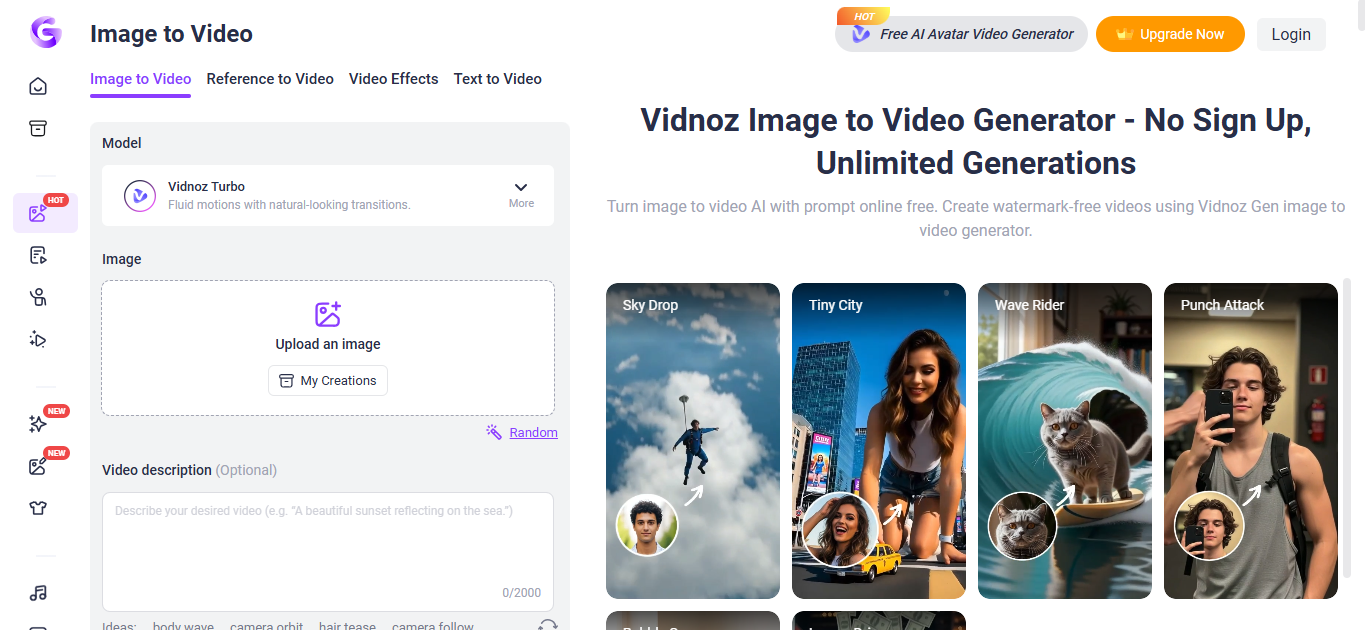
Vidnoz AI Image to Video: How It Works, Free Limits, and Alternatives
Vidnoz AI Image to Video turns a still picture into a short AI-generated video. You upload an image, describe the movement you want, choose an available model, and generate the clip.
The tool is simple to understand, but its free access is not. As of July 22, 2026, Vidnoz’s official product, support, and pricing pages give different information about login requirements, daily generations, credits, model availability, and watermarks.
The practical answer is this: Vidnoz offers some form of limited free image-to-video access, but the exact allowance depends on the route, account state, model, and current promotion. Check the live interface before uploading important content or purchasing credits.
What Is Vidnoz AI Image to Video?
Vidnoz AI Image to Video is a browser-based generator that creates motion from a still image and a written prompt.
The prompt can describe:
- Subject movement
- Facial movement
- Camera movement
- Background activity
- Lighting changes
- Details that should remain unchanged
For example, a portrait prompt might request a slight smile and a slow camera push-in. A product prompt could ask for moving reflections while preserving the packaging, logo, and printed text.
Vidnoz AI, Vidnoz Gen, and Talking Photo are different tools
Vidnoz uses several related product names:
- Vidnoz AI is the broader platform. It includes avatars, voices, templates, video editing, and other creation tools.
- Vidnoz Gen contains generative tools such as Image to Video, Text to Video, Photo Dance, Video Effects, and image generation.
- Talking Photo mainly animates a face to speak.
- Image to Video creates broader movement from a still image.
This distinction matters because different Vidnoz tools can have different credits, models, output limits, and watermark rules.
Is Vidnoz AI Image to Video Free?
Vidnoz promotes free image-to-video generation, but its official pages do not provide one consistent free-plan description.
The main product page says:
- No login or sign-up is required.
- Users receive one free generation per day.
- Videos can be downloaded as watermark-free MP4 files.
The same page also uses “no limits” and “completely free” language, which does not clearly match a one-generation-per-day allowance.
Vidnoz’s official support guide describes another route. It tells users to register, log in, and open Image to Video through Vidnoz Gen.
The current pricing page adds more conditions:
- The free plan shows zero monthly credits.
- Image to Video is marked as having limited free use.
- Paid plans include monthly credits.
- Watermark-free exports appear among paid features.
- A five-second image-to-video generation can use approximately 5 to 90 credits, depending on the model.
These official claims may refer to different interfaces or promotions. They should not be combined into a single universal free-plan rule.
What is verified
As of July 22, 2026:
- Vidnoz promotes limited free access to image-to-video generation.
- Credit use varies by model.
- Some higher-quality settings require a paid plan.
- The documented Vidnoz Gen workflow requires an account.
- A separate public route advertises no-login generation.
- Free watermark rules remain inconsistent across official pages.
What to check before generating
Review the live interface for:
- Login requirements
- Starting credit balance
- Daily free attempts
- Available models
- Credit cost
- Clip duration
- Quality setting
- Export resolution
- Watermark status
The current interface is more useful than an older tutorial when product pages disagree.
How Vidnoz Credits Work
Vidnoz Gen uses credits for image, video, and other AI-generation tasks.
The official pricing page currently lists a five-second image-to-video generation at 5 to 90 credits, depending on the chosen model.
This range has a major effect on value. A low-cost model could allow several generations from the same credit balance, while a premium model could consume most of it in a few attempts.
Paid plans currently show monthly allowances of:
- 180 credits
- 500 credits
- 800 credits
The page also displays an estimated cost of roughly $0.031 to $0.072 per credit, although the final price may change with the billing period, location, discount, or promotion.
Vidnoz also sells extra credit packs to subscribers. Pack credits remain valid while the related subscription is active. If the subscription is canceled, unused pack credits may expire at the end of the current billing period.
Before purchasing, calculate value using the model you plan to use rather than the total number of credits alone.
How to Use Vidnoz AI Image to Video
The official Vidnoz Gen workflow follows six main steps.
1. Open Vidnoz Gen
Open the Vidnoz Gen platform and select Image to Video.
The official support guide uses a logged-in account. A separate product page may offer a no-login route with different limits or settings.
2. Upload a source image
Choose the image you want to animate.
A suitable source image usually has:
- A clear main subject
- Sharp details
- Good lighting
- Enough space around the subject
- No important objects cut off at the edge.
Vidnoz lists JPG, PNG, and WEBP among its supported files. However, the same format description also mentions M4V and MP4, which are video formats. Check the current file picker for exact image requirements and size limits.
3. Choose a model and settings
Select one of the models available in your account or session.
Before generating, review:
- Credit requirement
- Clip duration
- Aspect ratio
- Quality setting
- Resolution
- Motion controls
Different models may support different settings.
4. Write a motion prompt
Describe what should move, how it should move, and which details must remain stable.
A useful prompt structure is:
Subject action + camera movement + environmental movement + pace + preservation instruction
Example:
The person slowly turns toward the camera while her hair moves gently in the breeze. The camera makes a subtle push-in. Keep the face, clothing, and background consistent.
This is a suggested prompt format, not a tested Vidnoz result.
5. Generate the clip
Check the displayed credit cost, then start generation.
Vidnoz promotes fast results, but it does not publish one processing-time specification that applies to every model, duration, resolution, plan, and server queue.
Generation speed should therefore be treated as variable.
6. Review and download the output
The documented logged-in workflow stores completed generations under My Creations.
Watch the entire clip before downloading or publishing it. Check:
- Facial identity
- Eyes, mouth, hands, and fingers
- Product dimensions
- Logos and text
- Clothing and colors
- Background objects
- Flicker
- Unrequested movement
A video can look convincing at normal speed while still containing visible errors in individual frames.
How to Write a Better Vidnoz Image-to-Video Prompt
The image already shows the subject and scene. The prompt should concentrate on movement.
Portrait prompt
The person gives a slight natural smile and slowly looks toward the camera. Hair moves gently in a soft breeze. The camera makes a slow push-in. Preserve the face, clothing, and background.
Product prompt
The camera slowly moves around the product while soft reflections travel across the packaging. Add subtle background mist. Keep the logo, printed text, colors, and product shape unchanged.
Landscape prompt
Clouds move slowly across the sky while the grass shifts in a light wind. The camera glides forward toward the mountains. Preserve the original composition.
Start with one main subject action and one camera movement. Complex prompts can introduce conflicting instructions and make the result harder to evaluate.
For portraits, subtle motion such as blinking, smiling, or turning slightly is more controlled than requesting running, dancing, or a complete body rotation.
Vidnoz Models and Output Options
Vidnoz’s official pages currently describe two different model groups.
Vidnoz Turbo and Vidnoz Max
The official support guide documents:
- Vidnoz Turbo: five-second and eight-second clips
- Vidnoz Max: five-second and ten-second clips
The guide also states that a higher-quality Turbo option requires a Vidnoz Gen Pro subscription.
These duration limits apply to the documented Turbo and Max workflow. They should not automatically be applied to every third-party model promoted elsewhere on Vidnoz.
Third-party models promoted by Vidnoz
The main Image to Video page also advertises:
- Google Veo
- Kling
- Wan2.5
- Hailuo
- PixVerse
- Luma
The same page promotes:
- More than 30 video styles
- Prompt-controlled motion
- 9:16 and 16:9 output options
- MP4 downloads
- Further editing through Vidnoz.
The two model lists may refer to different product interfaces, plans, or current configurations. Use the model selector visible in your own session as the most relevant reference.
What Quality Can You Expect?
Vidnoz describes its output using phrases such as smooth motion, stable results, detailed textures, and high-quality video. These are product claims rather than independent performance findings.
No original Vidnoz videos were generated for this article. There is therefore no evidence here to rate:
- Facial consistency
- Prompt accuracy
- Hand quality
- Product preservation
- Generation speed
- Logo or text stability
- Background consistency
The safest approach is to evaluate each result based on the type of image you uploaded.
Check identity in portrait videos
Inspect:
- Facial shape
- Eyes and eye direction
- Teeth and lips
- Hairline
- Skin texture
- Head and neck proportions
Even a small change can make a familiar person look different.
Check accuracy in product videos
Inspect:
- Package dimensions
- Product color
- Label design
- Logos
- Printed text
- Buttons, edges, and handles
- Reflections
Do not use a generated product clip in advertising if it changes the product being sold.
Test more than one generation
A single successful clip does not establish reliable quality or speed.
A more useful test records:
- Source image
- Exact prompt
- Model
- Duration
- Credit cost
- Processing time
- Output resolution
- Watermark status
- Visible errors
This also makes it easier to compare Vidnoz fairly with another image-to-video generator.
Main Vidnoz Limitations
Free access is not clearly documented
Official Vidnoz pages currently disagree about account requirements, free credits, daily generations, and watermark-free downloads.
Users must check the live interface rather than assume that one promotional claim applies to every account.
Credit costs vary widely
A five-second generation can cost between 5 and 90 credits, depending on the model.
This makes the number of usable generations difficult to estimate without knowing the exact model and how often a result needs to be regenerated.
Documented clips are short
Vidnoz Turbo and Max are documented with durations between five and ten seconds.
That can work for social clips, product reveals, and brief visual effects. It may not suit scenes requiring several actions or a longer narrative.
Model availability can change
Vidnoz’s product and support pages do not show one consistent model list.
A tutorial or review can become outdated if it presents one set of models as permanent.
Some content may be rejected
Vidnoz restricts explicit, violent, sexual, harmful, illegal, or rights-infringing content.
The company’s privacy policy also states that automated detection and, when necessary, human review may be used to identify prohibited material.
Where Vidnoz Image to Video May Be Useful
Vidnoz markets the generator for social media, marketing, product imagery, education, presentations, storytelling, and real estate.
These are suggested applications, not proof that every generated clip will be suitable for professional publishing.
Portraits and character images
Subtle animation may suit:
- Profile images
- Digital characters
- Illustrations
- Archival photographs
- Story artwork
Gentle movement is easier to inspect than complex body motion.
Product and ecommerce clips
A still product image could become a short:
- Product reveal
- Social advertisement
- Landing-page visual
- Ecommerce clip
- Promotional post
Check the final video against the real item before using it commercially.
Short social videos
Vidnoz promotes 9:16 video for vertical platforms and 16:9 video for wider formats such as YouTube.
Choosing the correct orientation before generation can reduce unwanted cropping later. Try AI Image Expander tool to correct your orientation.
Education and storytelling
Generated motion can support lessons, presentations, and visual explanations.
AI-created movement should not be presented as genuine historical footage or factual documentation.
Privacy, Ownership, and Commercial Use
Vidnoz’s Terms of Service were last updated in October 2024.
The terms state that, between the user and Vidnoz and where the law allows it:
- Users retain ownership of their input.
- Users own the generated output.
- Users must have the rights and permissions needed for uploaded material.
- Users remain responsible for reviewing the output before sharing it.
Vidnoz also receives a broad license to access, store, process, reproduce, display, distribute, and technically modify user content when needed to operate, improve, promote, and provide the service.
How long does Vidnoz retain content?
The current privacy policy is dated March 2026.
For covered tools including Vidnoz Gen, it states:
- Content from unregistered users is retained for seven days before automatic deletion.
- Free registered users receive 500 MB of storage.
- Free-account content can remain while the account is active.
- Accounts unused for one month may be treated as inactive.
- Paid users receive storage under their plan terms.
- Users may request deletion.
- Deleted data may remain in backups or caches for 30 to 90 days.
- Automated detection and possible human review may be used for policy enforcement.
Avoid uploading confidential or highly sensitive images unless these conditions meet your privacy needs.
Can Vidnoz videos be used commercially?
Vidnoz’s terms establish ownership between the platform and the user, but they do not guarantee that every output is legally safe for every commercial purpose.
You must still consider:
- Copyright in the source image
- Permission from people shown
- Trademark rights
- Product accuracy
- Privacy rights
- Publicity rights
- Advertising rules
- Applicable local law
For high-value advertising, client work, or content involving recognizable people, legal review may be appropriate.
Vidnoz AI Image to Video vs PicRevamp
Vidnoz and PicRevamp both display image-to-video generation options, but no controlled output comparison was performed for this article.
PicRevamp AI Video Generator has:
- Text to Video
- Image to Video
- Video to Video
- Video Editing
It also has the following models and credit requirements:
PicRevamp model | Displayed credit requirement |
Gemini Omni Flash Preview | 5 credits |
Veo 3.1 Lite | 25 credits |
Veo 3.1 Fast | 35 credits |
Veo 3.1 | 45 credits |
The interface also shows:
- 16:9 and 9:16 aspect ratios
- Five-second and eight-second durations
- Audio controls
- 1K, 2K, and 4K resolution options
- Public and private visibility controls
These are visible interface options. Their availability may change with the selected model or account state.
Vidnoz may be suitable when
- You specifically want its current Image to Video workflow.
- Your session includes usable free access.
- An available Vidnoz model matches your project.
- You already use other Vidnoz tools.
PicRevamp may be suitable when
- You want its displayed Veo and Gemini options in one generator.
- You want to see model credit requirements before generating.
- Its visible duration, audio, aspect-ratio, or resolution controls match your project.
- You want image, video, and editing modes within one platform.
This comparison covers visible product features only. It does not prove that either service produces better motion, higher quality, faster output, or better value.
A fair performance comparison would use:
- The same source image
- Equivalent prompts
- Matching aspect ratios
- Similar duration and resolution
- Recorded credit use
- Recorded processing time
- Export and watermark checks
- Frame-by-frame quality review
Is Vidnoz AI Image to Video Worth Trying?
Vidnoz is worth trying when the live interface shows a model, credit cost, duration, and export option that fit your project.
Its documented workflow is accessible to beginners. The main drawback is the inconsistent information across Vidnoz’s official product, support, and pricing pages.
Start with one small generation before buying credits or using the tool for client work. Check the final video carefully, especially when it contains a recognizable person, product, logo, or written text.
PicRevamp is a relevant alternative when its displayed Veo or Gemini models and generation controls better match the task. Only a controlled test can establish meaningful differences in quality, speed, consistency, or value.
Frequently Asked Questions
Does Vidnoz AI Image to Video require an account?
The public product page says no login is required. The official Vidnoz Gen support guide tells users to register and sign in. The requirement may depend on the route, account state, model, or current promotion.
Is Vidnoz AI Image to Video free without a watermark?
The main landing page advertises one free daily generation and watermark-free MP4 downloads. The pricing page shows zero monthly free credits, describes free Image to Video access as limited, and lists watermark-free exports among paid features. A current free export is needed to confirm what applies to a specific account.
How many credits does a Vidnoz video use?
Vidnoz’s pricing page lists approximately 5 to 90 credits for a five-second image-to-video generation, depending on the model.
Which Vidnoz image-to-video models are available?
The official support guide documents Vidnoz Turbo and Vidnoz Max. The public landing page also promotes Google Veo, Kling, Wan2.5, Hailuo, PixVerse, and Luma. The models available to a user may depend on the interface, plan, region, or current product configuration.
Can Vidnoz convert JPG and PNG images into MP4 videos?
Vidnoz lists JPG, PNG, and WEBP among its supported files and advertises MP4 downloads. The exact upload limits should be confirmed in the selected model’s current file picker.
Can Vidnoz-generated videos be used commercially?
Vidnoz’s terms say users own generated output as between themselves and the platform, where permitted by law. Users must still have the necessary rights to the source material and remain responsible for complying with copyright, trademark, privacy, publicity, and other applicable rules.
What is an alternative to Vidnoz Image to Video?
PicRevamp is a relevant alternative because its public Image to Video generator offers several Veo and Gemini options, visible credit requirements, and controls for duration, orientation, audio, and resolution. No controlled test has established which platform produces better results.