Background Remover AI: Best Tools and Tips for 2026
 Picrevamp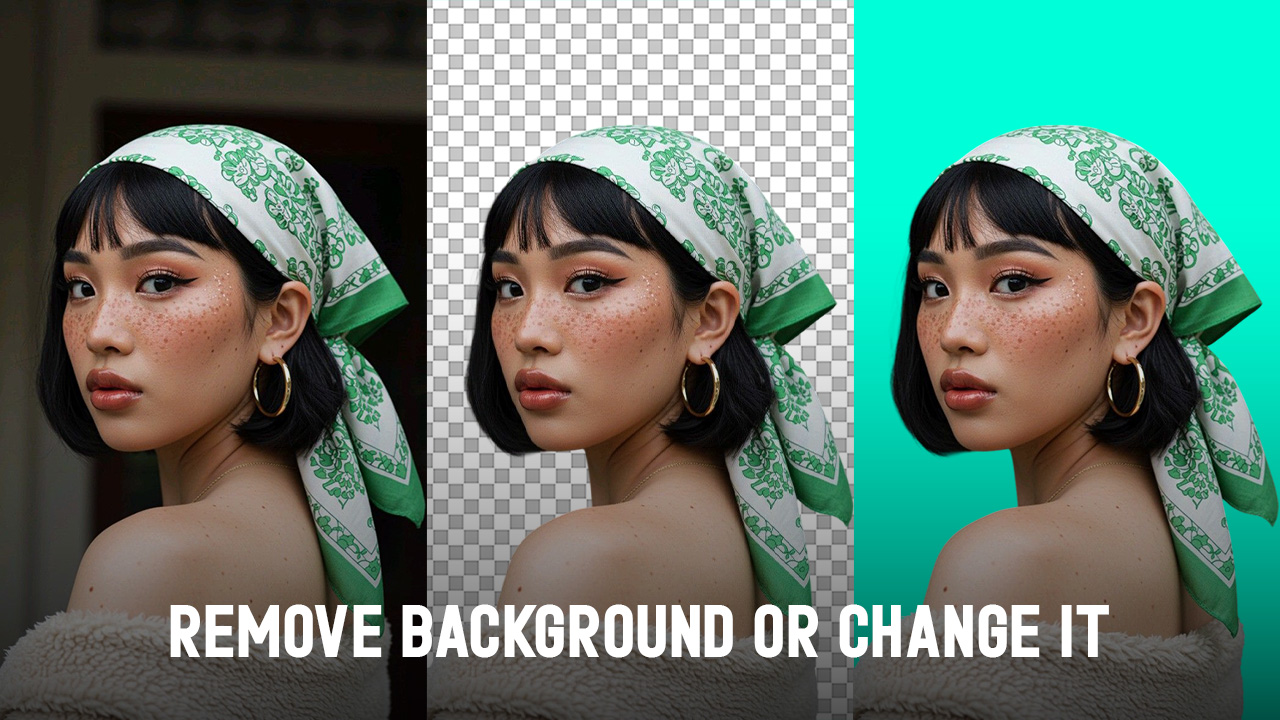
Try an AI background remover to clean up your next product photo, profile image, or social post in seconds.
Background Remover AI: Best Tools, Use Cases, and Smart Editing Tips for 2026
Introduction
Bad backgrounds can ruin good images.
A product photo looks less trustworthy when the table is messy. A profile picture feels less professional when the room behind you is distracting. A social media post loses focus when the subject blends into the scene.
This is why background remover AI tools are now a regular part of photo editing in 2026. You upload your image, and the AI finds the main subject, removes the background, and lets you download a transparent PNG, a white-background image, or a new design-ready version.
The best part is that you no longer need advanced design skills. Still, it helps to know when to use these tools, how to pick the right one, and how to fix small mistakes the AI might make.
What Is a Background Remover AI Tool?
A background remover, the AI tool is an online editor or app that automatically removes the background from an image.
Instead of tracing around the subject by hand, the AI finds the main object, person, animal, product, logo, or graphic. Then it separates the subject from the rest of the image.
Most tools let you:
- Keep the background transparent.
- Replace it with white.
- Add a solid color
- Add a new image background.
- Create product-style photos
- Design social media graphics.
- Export the result as a PNG or JPG.
Tools like remove.bg focus on fast, automatic background removal and generation, while Adobe Express lets users remove a background and continue editing the image with templates, graphics, and Adobe Stock assets.
How AI Background Removers Work
An AI background remover analyzes the image to identify the main subject. It checks edges, contrast, shapes, shadows, colors, and depth cues.
Then it separates the subject from the background.
For simple images, the results can be nearly perfect. For example, a product on a table or a person in front of a plain wall is easy for AI to process.
More complex images need extra attention. Things like hair, fur, glass, smoke, jewelry, lace, shadows, or low-light photos can be tricky for the tool.
That is why you usually get the best results by following a simple process:
- Start with a clear photo.
- Remove the background with AI.
- Check the edges
- Restore or erase small areas if needed.
- Export in the right format
Photoroom similarly explains the process: its AI detects and isolates the main subject, such as a product, person, or object, before removing the background.
Why People Use AI Background Remover Tools in 2026
AI background removers are popular because they save time.
A task that used to take 10 to 30 minutes in a manual photo editor can often be done in seconds. That matters when you are editing one profile photo. It matters even more when you are preparing 100 product images.
Main reasons people use them
- To create cleaner product photos
- To make social posts look polished.
- To remove messy room backgrounds
- To create thumbnails faster
- To make profile photos more professional
- To prepare images for marketplaces
- To design ads and banners
- To keep brand visuals consistent
For online sellers, clean backgrounds are not just about style. Amazon’s product image guidance says main product images should use a pure white background with RGB values of 255, 255, 255. Shopify also recommends removing visual distractions and using a pure white background so the product stays the focus.
Best Use Cases for Background Remover AI
1. Product photos for e-commerce
This is one of the best ways to use these tools.
Sellers can remove clutter, create a white background, and make product grids look consistent. This helps on Shopify, Amazon, Etsy, eBay, and independent stores.
Use background remover AI tools for:
- Main product images
- Collection thumbnails
- Catalog photos
- Ad creatives
- Marketplace listings
- Before-and-after product visuals
A plain white background usually works best for the main product photo. For extra images that show mood, size, or how to use the product, lifestyle backgrounds are a better choice.
2. Social media content
Creators use AI background removers to make their posts look cleaner, without needing a studio setup.
You can cut out a person, object, or product and place it on:
- A bold color background
- A branded template
- A seasonal design
- A YouTube thumbnail
- An Instagram carousel
- A LinkedIn banner
Canva’s background remover is built into its editor, so users can remove a background and continue designing inside the same workspace.
3. Profile photos and headshots
A distracting background can make a good photo look casual.
With an AI background remover, you can keep your face and body while replacing the background with a solid color, an office-style backdrop, or a soft blur.
This works well for:
- LinkedIn profile photos
- Resume headshots
- Speaker bios
- Team pages
- Portfolio pages
- Online course profiles
Try to keep it natural. Usually, a simple background looks better than a dramatic AI-made office scene.
4. Marketing ads and banners
Marketers often need the same product or person in many layouts.
A transparent cutout makes this easy. You can put the subject on different ad sizes without having to edit the image from the beginning each time.
Use it for:
- Facebook ads
- Google display ads
- Website hero banners
- Email graphics
- Sale posters
- Product launch images
Adobe Express supports background removal, PNG downloads, background replacement, templates, filters, graphics, and short video-style edits after the background is removed.
5. Thumbnails for YouTube, TikTok, and blogs
Thumbnails should draw attention to the main subject.
A clean cutout helps the face, product, or main object stand out. After that, you can add text, arrows, color blocks, or brand elements behind the subject.
This is useful for:
- YouTube thumbnails
- TikTok covers
- Pinterest pins
- Blog feature images
- Online course thumbnails
6. Real estate, cars, pets, and personal photos
AI background removers are not only for business.
People use them to clean up personal photos, remove busy backgrounds, make fun stickers, design invitations, or help pet photos stand out.
Picsart lists several image types for its background remover, including people, portraits, graphics, products, cars, logos, real estate, and animals.
What to Look for in a Good AI Background Remover
Not every background remover AI tool works the same way.
Some tools are great for quick, transparent PNGs. Others are better for e-commerce. Some are part of full design platforms, while others are best for simple, casual edits.
1. Edge quality
Look closely at the border around the subject.
Good tools keep:
- Hair detail
- Fur texture
- Product edges
- Small holes inside objects
- Transparent or semi-transparent areas
Lower-quality tools can leave halos, rough edges, missing parts, or odd white spots.
Reddit discussions around product photo editing often mention the same pain points: fine details, batch editing, pricing, high-resolution exports, and cutout quality.
2. Transparent PNG export
If you want to place the subject on another design, download it as a transparent PNG.
Use JPG when you want a final image with a white, colored, or lifestyle background.
3. Manual touch-up tools
Even the best AI tools can make mistakes.
A useful background remover should let you restore missing parts or erase leftover background areas.
This is important for details like hair, jewelry, hands, product handles, glassware, and clothing edges.
4. Batch background removal
Batch editing is especially helpful for e-commerce sellers and agencies.
If you only edit one image at a time, almost any tool will do. But if you need to edit hundreds of products, batch tools can save you hours.
Picsart says its batch background remover can process up to 50 photos at once.
5. Background replacement options
Removing the background is only step one.
A good tool should also help you finish the final image.
Look for:
- White background
- Solid color background
- Gradient background
- AI-generated background
- Product studio background
- Lifestyle scene background
- Blur background option
Photoroom lets users keep a transparent background or replace it with a studio setup, lifestyle scene, or custom AI background.
6. Mobile and desktop support
Many creators edit on mobile. Many sellers prefer a workflow. The best tool is the one that matches how you like to work.
Adobe Express and Photoroom both support background removal on mobile and desktop.
AI Background Remover Tool Comparison
Fast single-image cutouts | Automatic background removal, transparent cutouts, AI background generator | Best for quick edits, but detailed cleanup may still be needed | |
Creators and marketers | Free background remover, PNG export, templates, graphics, Adobe Stock options | Best if you want to keep designing after removal | |
Social posts, presentations, brand designs | One-click BG Remover inside Canva editor, PNG export | Some background tools are tied to paid Canva plans | |
Ecommerce and brand visuals | Product-focused cutouts, studio/lifestyle backgrounds, mobile and desktop use | Check current export and plan limits before using at scale | |
Mixed creative edits | Image and video background removal, batch tool, background presets, AI enhancer | Some features may require a trial or paid plan | |
AI editing and creative workflows | Background remover, background changer, background blur, image upscaler, magic eraser | Best checked directly for current credits and export options |
PicRevamp is worth considering if you want background removal as part of a broader AI editing setup. Its listed tools include Background Remover, AI Background Changer, AI Background Blur, Magic Eraser, and Image Upscaler, as well as tools for image, video, and audio generation.
How to Remove a Background Without Making the Image Look Fake
AI can remove a background quickly, but a fast edit is not always the best edit.
The goal is to make the final image look clean and natural, not fake.
Step 1: Use a clear source photo
Start with the best image you have.
Good source photos have:
- Clear lighting
- Sharp focus
- Visible subject edges
- Simple background
- Good contrast between subject and background
Adobe Express recommends choosing an image with a clear subject that does not overlap with too many other elements for the best results.
Step 2: Remove the background
Upload the image to your chosen AI background remover.
For product images, try both transparent and white backgrounds. For social media, experiment with a brand color or a simple gradient.
Step 3: Zoom in on the edges
Before downloading, check:
- Hair
- Hands
- Product corners
- Transparent items
- Shadows
- Small holes
- Straps
- Handles
- Reflections
If the subject looks like a sticker, the edges are probably too sharp.
Step 4: Add a natural shadow when needed
For product photos, a soft shadow can make the object feel grounded.
A product floating on a plain white background can look fake, but adding a soft shadow helps it look more real.
Step 5: Match the background to the purpose
Pick the background that fits your purpose.
Purpose | Best Background |
Amazon main image | Pure white |
Shopify product grid | White or light neutral |
Instagram post | Brand color or lifestyle scene |
LinkedIn headshot | Soft neutral or office-style background |
YouTube thumbnail | High-contrast color |
Portfolio image | Simple background that matches the brand |
Etsy’s own seller guidance recommends simple, uncluttered backgrounds that show the product without distracting from it.
Common Mistakes to Avoid
Mistake 1: Using a low-quality original image
AI cannot completely fix a blurry photo.
If your original image is dark, pixelated, or out of focus, the cutout will not look good either.
You can fix this by taking a new photo or using an image enhancer before removing the background.
Mistake 2: Ignoring the edges
Many users download the first result without checking the details.
That is often where mistakes become visible.
Look for missing fingers, chopped hair, broken product corners, or leftover background bits.
Mistake 3: Replacing every background with something dramatic
Not every image needs a new scene.
For e-commerce, simple backgrounds usually work better than creative ones. Use lifestyle backgrounds only when they help buyers understand the product, not just because the tool has them.
Mistake 4: Making product images inconsistent
A store can look messy if every product uses a different background style.
Choose a simple system:
- Main image: white background
- Second image: lifestyle background
- Third image: detail close-up
- Fourth image: scale or usage photo
Mistake 5: Forgetting marketplace rules
Some platforms have strict image rules.
Amazon's main images need a pure white background. Other marketplaces may allow more creative images, but clean and clear photos still perform better for shoppers.
Mistake 6: Overusing AI-generated backgrounds
AI-generated backgrounds can help, but they can also create scale problems.
A candle may look giant next to a fake table. A shoe may float above the floor. A handbag may cast the wrong shadow.
Only use AI backgrounds if they look realistic and help show off the product.
Free vs Paid AI Background Removers
Free tools are good for simple needs.
Paid tools are worth it if you need higher resolution, batch editing, brand consistency, more background choices, or fewer restrictions.
Free tools are best for:
- One-time edits
- Profile pictures
- Casual social posts
- Simple transparent PNGs
- Testing different platforms
Paid tools are best for:
- E-commerce stores
- Agencies
- Regular content creators
- Product catalogs
- Batch editing
- High-resolution exports
- Brand templates
Before you pay, try the same five images in different tools. Make sure to include at least one simple image and one challenging one with hair, fur, glass, or fine edges.
This quick test will tell you more than a feature list.
Best Background Remover AI Workflows by User Type
For creators
Choose a tool that lets you remove backgrounds and use design templates together.
Best workflow:
- Remove the background
- Add a bold color or brand background.
- Add text or stickers.
- Export in the right social size
- Save the design as a reusable template.
Canva, Adobe Express, Picsart, and PicRevamp fit this kind of workflow well.
For e-commerce sellers
Focus on making your product photos look consistent every time.
Best workflow:
- Shoot products in good light.
- Remove the background
- Add a white or light neutral background.
- Add a soft, natural shadow.
- Export in marketplace-ready size
- Use the same style across all listings.
If you sell on Shopify or Amazon, simple, clean product photos usually work better than images with lots of design elements.
For marketers
Plan your work around campaigns, not just single images.
Best workflow:
- Cut out the product or person.
- Create several ad layouts.
- Test white, brand color, and lifestyle versions.
- Keep the subject consistent.
- Use different backgrounds for different audiences.
For everyday users
Keep things simple.
Best workflow:
- Upload your image
- Remove the background
- Pick transparent, white, or soft neutral.
- Check the edges
- Download the final photo.
This is enough for profile pictures, resumes, school projects, invitations, and personal designs.
Tips for Better AI Background Removal Results
Make sure there is good contrast.
A black product on a black background is hard to separate. A light product on a dark surface is much easier for the AI to detect.
Avoid busy backgrounds when shooting.
Even if you plan to remove the background later, start with a clean image. This makes it easier for the AI to do a good job.
Keep shadows soft
Strong shadows can be mistaken for part of the subject.
Use natural lighting
Bright, even lighting helps the AI find clean edges.
Test multiple tools
One tool might work better for hair, another for products, and another for batch editing.
Save originals
Always save your original image. You can edit it again later for a different layout.
FAQ: Background Remover AI
What is the best background remover AI tool?
The best background remover AI tool depends on what you need. remove.bg is great for quick cutouts. Adobe Express and Canva are helpful if you want to keep designing after removing the background. Photoroom is focused on e-commerce and brand visuals. Picsart is good for creative edits, batch work, and video background removal. PicRevamp is another option that includes background removal and other AI editing features.
Can AI remove backgrounds for free?
Yes, many tools let you remove backgrounds for free. However, the limits are different for each one. Some free tools limit resolution, exports, credits, batch editing, or advanced features. Always check the current plan before starting a big project.
Does background remover AI work for product photos?
Yes, it works very well for most product photos, especially if the product is sharp, well-lit, and has a simple background. For glass, jewelry, shiny items, or tricky edges, you might need to clean up the image by hand.
Can I use AI background remover for Amazon product images?
Yes, but the final image must follow Amazon’s image requirements. Main product images need a pure white background with RGB values of 255, 255, 255.
What image format should I download after removing the background?
Use PNG when you need a transparent background. Use JPG when you want a finished image with a white, colored, or lifestyle background.
Why does my AI cutout look fake?
Your cutout might look fake if the edges are too sharp, there is no shadow, the background lighting does not match, or the AI removed part of the subject. Try adding a soft shadow, fixing the edges, and using a simpler background.
Can AI remove backgrounds from videos?
Yes, some tools support video background removal. Canva offers video background removal through Canva Pro, and Picsart also promotes browser-based video background removal.
Is background remover AI better than Photoshop?
For quick edits, AI background removers are usually much faster. For more complex or professional work, Photoshop still gives you more control. Many people use AI for the first cutout, then fine-tune the image as needed.
Can AI background removers handle hair and fur?
They can, but the results are not always perfect. Hair, fur, lace, glass, and see-through objects are still difficult. Always zoom in and check the edges before you publish.
Should product photos have white or lifestyle backgrounds?
Use white backgrounds for clean product listings, catalogs, and marketplace main images. Use lifestyle backgrounds for secondary images, ads, social posts, and product storytelling.
Conclusion
Using a background remover AI tool is one of the simplest ways to improve your photos in 2026.
It helps creators make cleaner content, businesses create consistent visuals, marketers test more ad designs, and everyday users fix distracting photos without needing to learn complicated editing software.
The key is not just taking out the background. The real value is in picking the right background after you remove it.
For product photos, keep things clean. For social media, make your images bold but easy to read. For profile photos, keep them natural. For ads, try different versions and see which one works best.
AI can quickly cut out the background, but your choices make the final image look professional.
Try several background-removal AI tools on the same image before you decide which one to use. If you want an editing workspace with background removal, background replacement, blur, object removal, and image upscaling, PicRevamp is a good option to test in your creative workflow.