Photoroom Background Remover: Best AI Tools for Remove Background
 Picrevamp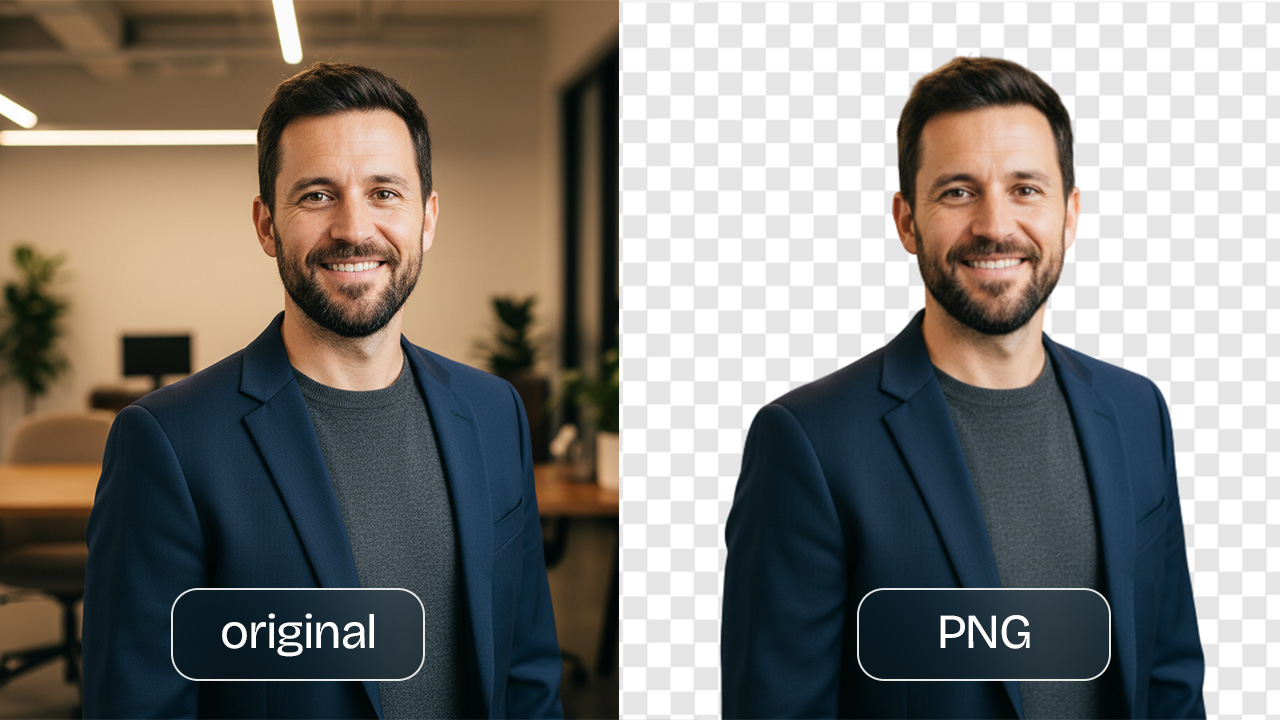
A quick look at the best AI tools for removing photo backgrounds in 2026
PhotoRoom Background Remover: Best AI Background Removal Tools and Use Cases for 2026
Introduction
A messy background can make a good photo look cheap.
This is important whether you’re selling on eBay, posting to Instagram, updating your LinkedIn photo, or making product images for your shop. You don’t always need Photoshop or a designer. By 2026, AI background removal tools can quickly find the main subject, erase the background, and give you a clean image in just seconds.
Most people searching for a photo room background remover want Photoroom’s AI tool or a similar app that works fast. With Photoroom, you can keep the background transparent, switch it to white, choose a color, or keep editing the image for your product photos.
This guide explains which tools to use, when to use them, and how to avoid common mistakes with background removal.
What is the photo room background remover?
When people search for a photo room background remover, they usually mean Photoroom’s AI background remover.
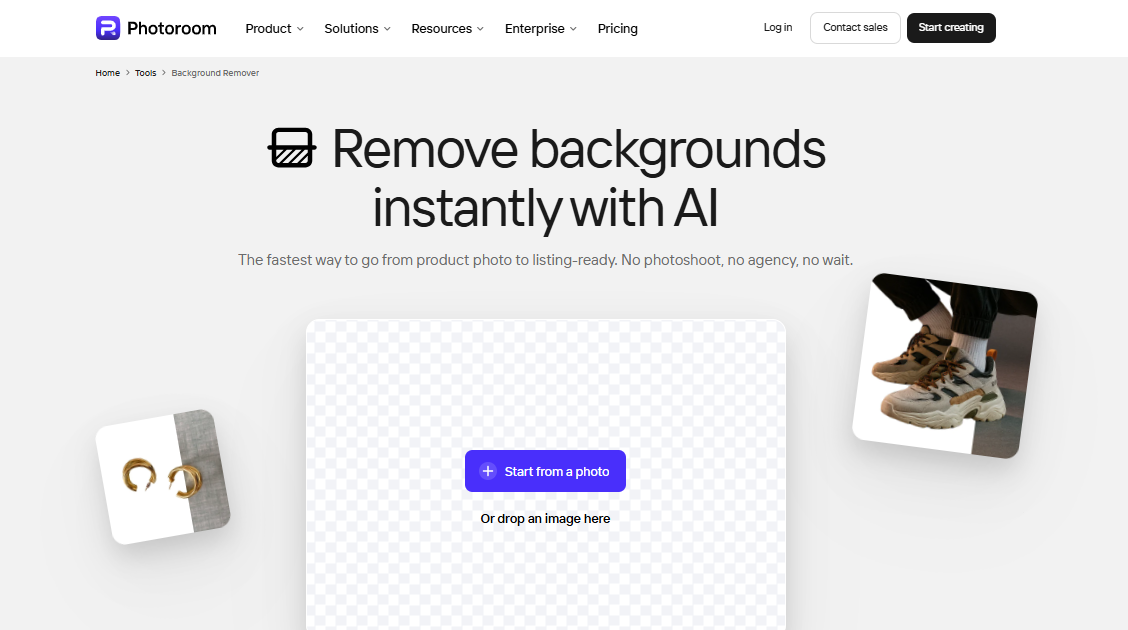
Photoroom is an AI photo editor made for product photos, brand images, and fast background changes. Its background remover lets you upload a photo, erase the background, and save the result as a PNG, JPEG, or WEBP file.
For most people, this means you can:
- Remove a cluttered room behind a product.
- Create a transparent PNG for a logo or sticker.
- Put a white background behind marketplace photos.
- Make a cleaner profile photo.
- Replace a dull background with a simple studio-style backdrop.
- Edit many product photos with a more consistent look.
Photoroom also includes an Edit Cutout feature, so you can erase or bring back parts of the image if the automatic tool removes too much or too little.
Manual cleanup is important. AI works quickly, but it can still miss details like hair, glass, shadows, thin straps, jewelry, or the edges of products.
How AI Background Removers Work
AI background removers look for the main subject in an image. The subject may be a person, product, animal, car, logo, or object.
The tool separates the subject from the background, then removes or replaces the unwanted area. Photoroom describes this process as detecting and isolating the main subject before erasing the background.
Most tools then give you one or more export options:
- Transparent background
- White background
- Solid color background
- Custom image background
- AI-generated background
- Social media design
- Product listing image
The best tools do more than just remove backgrounds. They also help with resizing, lighting, shadows, and the final layout.
Why Background Removal Matters in 2026
Online images are now more about being practical than looking perfect.
People want clean-looking photos without spending hours editing. Sellers want to list items faster. Creators want better thumbnails. Job seekers want neat headshots. Small businesses want product photos that look consistent.
Reddit discussions from sellers clearly show the real pain points: users want app stability, batch editing, manual cutout control, subject resizing, and fewer export limits. One eBay seller said they wanted a tool that would not overheat or crash their phone, and they also wanted the ability to edit the cutout when the AI made a mistake.
That’s what people are really looking for when they search for this tool.
People aren’t just asking, “What is the tool?”
They want to know, “Which background remover will save me time and still give me a clean result?”
Best Use Cases for AI Background Removal
1. Product Photos for Online Stores
This is where tools like Photoroom really shine.
If you sell clothes, handmade items, furniture, electronics, cosmetics, or accessories, a clean background helps the product stand out. Photoroom focuses heavily on e-commerce images and lets users replace removed backgrounds with studio or lifestyle scenes.
Good product photo use cases include:
- White backgrounds for marketplaces
- Transparent PNGs for ads
- Lifestyle backdrops for social media
- Matching backgrounds across a catalog
- Clean images for Shopify, Etsy, eBay, Amazon, or personal stores
For sellers, having a consistent look is usually more important than fancy edits. A plain white or light gray background often works better than a busy AI-generated scene.
2. Social Media Posts
Background removers help creators make posts more quickly.
You can remove the background from a selfie, product, pet, food photo, or object, then place it on a branded design. Canva’s background remover is built directly into its design editor, which makes it useful when the final image needs text, shapes, templates, or social sizing.
Use it for:
- Instagram posts
- TikTok covers
- YouTube thumbnails
- Pinterest pins
- Facebook ads
- Event graphics
- Personal announcements
For social media, you don’t always need a transparent background. Sometimes a soft color, blur, or simple pattern looks better.
3. Profile Photos and Headshots
A simple background can make your profile photo look more professional.
Adobe Express removes image backgrounds and exports transparent PNG files, which can then be placed on a new background or used in a design.
This works well for:
- LinkedIn photos
- Resume headshots
- Speaker bios
- Team pages
- Portfolio pages
- Student profiles
- Community avatars
Keep your edits looking natural. Avoid backgrounds that seem fake or too dramatic for the platform.
4. Logos, Stickers, and Graphics
Transparent backgrounds are useful when you need a logo or object to sit cleanly on another design.
remove.bg focuses on automatic background removal and also offers an AI background generator for creating custom backdrops.
Use transparent PNGs for:
- Logos
- Website graphics
- Stickers
- Labels
- Mockups
- Email headers
- Presentations
- Merch designs
For logos, always check the edges. White outlines around text or icons can make your design look unfinished.
5. Batch Editing for Sellers
If you edit one image a week, almost any good tool will work.
If you edit 50, 500, or 5,000 images, batch editing becomes the main feature.
Photoroom includes batch editing features for large groups of product visuals. Pixelcut says its bulk background remover can process up to 10,000 images in one batch. Picsart offers batch background removal for up to 50 photos at once. PicWish supports bulk editing online and larger batches on desktop.
For sellers, batch editing makes it easier to keep all your listing images consistent.
photo room background remover Alternatives in 2026
Photoroom is a strong option, but it is not the only one.
The best alternative depends on what you need, like free downloads, batch editing, design templates, transparent PNGs, editing on your phone, or better results with hair and edges.
Photoroom
Best for product photos, small business visuals, and marketplace-ready images.
Photoroom removes backgrounds, supports transparent or white backgrounds, lets users pick colors, and includes additional product photo tools such as AI backgrounds, product staging, resizing, and image enhancement.
Pick this tool if you want a background remover that also helps you improve your product photos.
remove.bg
Best for quick, transparent cutouts.
remove.bg is simple: upload an image, remove the background, and get a clean cutout. It is a good fit when you need speed and do not want a full design editor.
Choose this one if you mainly want fast background removal.
Canva Background Remover
Best for people who want to design after removing the background.
Canva lets users remove backgrounds inside the editor, then continue with templates, text, graphics, and layouts. It supports common image formats, including JPG, PNG, HEIC, and HEIF.
Pick Canva if your final image will be a post, flyer, ad, presentation, or branded graphic.
Adobe Express Background Remover
Best for clean, transparent PNGs and simple design edits.
Adobe Express supports JPEG, PNG, and WebP uploads and automatically removes the background before giving users a transparent PNG.
Choose Adobe Express if you want a quick cutout from a well-known design brand.
Pixelcut
Best for free HD downloads and larger batch needs.
Pixelcut says its background remover is free, does not require a sign-up, supports JPG, PNG, and HEIC, and allows uploads up to 100 MB and 8000 × 8000 pixels.
Pick Pixelcut if you want a browser-based tool that’s free to use.
Picsart
Best for creators who also edit videos and social graphics.
Picsart’s background remover works for product photos, portraits, graphics, cars, real estate images, animals, and logos. It also offers batch background removal and video background removal.
Choose Picsart if you want background removal as part of a bigger creative editor.
PicWish
Best for bulk editing and product-focused cutouts.
PicWish supports product photos, people, cars, animals, graphics, and signatures. It also includes bulk editing and product-focused options like shadows and lighting.
Pick PicWish if you edit lots of product images and want practical finishing tools.
PicRevamp
Best for simple AI background removal inside a wider creative tool suite.
PicRevamp’s help page explains that users can upload an image, let AI detect and remove the background, and download a transparent image. Its main site also presents it as an AI suite for images, videos, and audio, including image-editing tools.
Pick PicRevamp if you want a simple background remover along with other AI creative tools in one place.
AI Background Remover Comparison Table
Photoroom | Product photos and seller images | Background removal plus AI product photo tools | eBay, Etsy, Shopify, small brands |
Fast transparent cutouts | Simple automatic background removal | Logos, profile photos, quick edits | |
Canva | Designed social graphics | Remove background inside a design editor | Posts, flyers, ads, thumbnails |
Adobe Express | Transparent PNG cutouts | Automatic removal with easy download | Headshots, product photos, collages |
Pixelcut | Free and batch-friendly edits | Free HD download and large file support | Sellers, creators, bulk images |
Picsart | Creative photo and video edits | Image and video background removal | Social creators and casual editors |
PicWish | Bulk product editing | Batch tools, shadows, lighting | Online sellers and catalog work |
PicRevamp | Simple AI cutouts | AI detects and removes backgrounds in seconds | Everyday users and creators |
How to Choose the Right AI Background Remover
Choose Photoroom if you sell products.
Photoroom is a good pick when your final image should look like a product listing, not just a simple cutout.
Use it for:
- Clothing
- Shoes
- Beauty products
- Handmade goods
- Furniture
- Food photos
- Marketplace listings
The extra editing tools are helpful when you want your product photos to look consistent.
Choose Canva if the image needs a design.
Use Canva when the cutout is just one part of your final design.
It works well for:
- Posters
- Instagram carousels
- Ads
- School projects
- Event invites
- YouTube thumbnails
- Presentation slides
Choose remove.bg or Adobe Express for quick, transparent PNGs
Sometimes you don’t need a full editor.
You just need the background removed.
remove.bg and Adobe Express both fit that simple use case well. remove.bg focuses on automatic background removal, while Adobe Express gives you a quick, transparent PNG and lets you continue editing in its design tools.
Choose Pixelcut, PicWish, or Picsart for batch work.
If you edit a lot of photos, check the batch limits, download quality, watermarks, and how well the tool works on your phone.
Pixelcut, PicWish, and Picsart all offer batch-related features, but each tool handles limits and exports differently.
Choose PicRevamp for a simple AI creative workflow.
PicRevamp is a good choice if you want background removal as part of a bigger set of AI creative tools. The process is simple: upload your image, let the AI remove the background, and download the transparent result.
How to Use a Background Remover for Better Results
Start with a clear photo.
AI works best when the subject is easy to see.
Use a photo where:
- The subject is not blurry.
- The lighting is even.
- The background does not match the subject color.
- The edges are visible.
- The subject is not cut off.
- Hair, straps, glass, or fur are not hidden in shadows.
A clearer original photo makes it easier for the AI to do a good job.
Use white backgrounds for marketplaces.
For product listings, white or light gray usually works best.
This keeps your image clean and helps shoppers focus on the item. Avoid using bold AI backgrounds for main product images unless the marketplace allows them and they fit your brand.
Use transparent PNGs for design work.
Transparent backgrounds are better when you need to place the subject on:
- A website banner
- A social graphic
- A logo layout
- A presentation
- A thumbnail
- A product mockup
PNG is the best format when you need a transparent background.
Add shadows carefully
A cutout without a shadow can look like it is floating.
For product photos, add a soft, natural shadow if you can. Keep it subtle—strong, fake-looking shadows can make the image look edited.
Check the edges before downloading.
Zoom in before you save the final image.
Look at:
- Hair
- Fur
- Glass
- Jewelry
- Product handles
- Thin fabric
- Shoe laces
- Bottle edges
- Logo outlines
Use erase and restore tools if they’re available. Photoroom’s Edit Cutout feature is made for this kind of manual cleanup.
Practical Examples
Example 1: eBay Seller Photo
You take a photo of a used camera on your kitchen table.
Best workflow:
- Upload the image to Photoroom, Pixelcut, PicWish, or PicRevamp.
- Remove the background.
- Add a white or light gray background.
- Center the camera.
- Add a natural shadow.
- Export as JPG or PNG.
- Upload to your listing.
Be honest with your edits. Don’t hide scratches, marks, or defects.
Example 2: LinkedIn Headshot
You have a good selfie, but the background is messy.
Best workflow:
- Upload the image to Adobe Express, Canva, remove.bg, or try our AI Headshot Generator for fast, high-quality results.
- Remove the background.
- Add a plain light background.
- Crop from chest to head.
- Adjust brightness.
- Download as PNG or JPG.
Avoid using fake office backgrounds unless they look natural.
Example 3: Instagram Product Post
You sell handmade candles.
Best workflow:
- Remove the original background.
- Add a soft beige or warm studio background.
- Add light shadow.
- Place your brand name or short caption.
- Resize for Instagram.
- Save a version for stories and feed posts.
For social media, lifestyle backgrounds often look better than plain white ones.
Example 4: Logo Cutout
You have a logo file with a white box around it.
Best workflow:
- Upload the image to remove.bg, Adobe Express, Canva, or PicRevamp.
- Remove the white background.
- Download as transparent PNG.
- Test it on dark and light backgrounds.
- Remove any leftover white edges.
If the logo has small text, use the highest quality file you have.
Tips for Cleaner AI Background Removal
Use contrast
A black product on a black table is hard for AI to read.
Place your subject in front of a different color before taking the photo.
Avoid busy backgrounds
AI can remove messy backgrounds, but simple backgrounds still give better results.
A plain wall, sheet, table, or poster board can help you get a cleaner cutout.
Do not over-edit
The best background removal often looks simple or even a bit plain.
That is a good thing.
Clean, simple, and realistic usually works better than dramatic.
Keep a consistent style.
For product photos, use the same background color, crop, angle, and shadow style across all images.
This helps your store look more trustworthy.
Test more than one tool.
No background remover is perfect for every image.
One tool may handle hair better. Another may handle product edges better. Another may give better free exports.
For important images, try two or three tools before picking the final version.
Common Mistakes to Avoid
Mistake 1: Using low-quality photos
AI can’t fully fix a blurry or dark photo.
Start with the clearest photo possible.
Mistake 2: Ignoring edge problems
Rough edges can make an image look fake.
Always zoom in and check before publishing.
Mistake 3: Choosing the wrong file type
Use PNG for transparent backgrounds.
Use JPG for regular product listings when transparency is not needed.
Mistake 4: Using unrealistic AI backgrounds
A dramatic studio background can make a small item look unrealistic.
Use simple backgrounds unless the image is clearly for social media or advertising.
Mistake 5: Hiding product flaws
For resale listings, do not remove scratches, stains, dents, or condition details.
Clean backgrounds are good, but misleading edits are not.
Mistake 6: Forgetting mobile performance
Some sellers edit everything on a phone.
Before you pay for a tool, make sure it runs smoothly on your device. Sellers on Reddit often mention crashes, overheating, and export limits as real issues.
FAQ
What is the best photo room background remover?
Photoroom is the tool most people mean when they search for a photo room background remover. It is a strong choice for product photos, marketplace listings, and fast AI cutouts.
Is Photoroom free to use?
Photoroom lets users get started for free, but some tools, high-resolution exports, or advanced features may require an upgrade. Always check the current pricing in the app or on the official website before choosing a plan.
Can I remove a background without losing image quality?
You can get a clean result if the original photo is sharp and well-lit. Some tools also preserve detail better than others. Always zoom in and check fine edges before exporting.
Which background remover is best for product photos?
Photoroom, Pixelcut, PicWish, and Canva are strong choices for product photos. Photoroom is especially product-focused, while Canva is better when you want to turn the cutout into a full design.
Which tool is best for transparent PNGs?
remove.bg, Adobe Express, Pixelcut, Canva, and Photoroom can all be used for transparent background images. The best choice depends on whether you need only a PNG or a full editor.
Can AI background removers handle hair?
Yes, many AI tools can handle hair, but results vary. Pixelcut highlights clean edges on hair and fur, while PicWish also mentions handling complex details like hair and product edges.
Can I use a background remover on my phone?
Yes. Photoroom is available as a mobile app, and tools like Canva and Adobe Express also support background removal on mobile devices.
What is the best background remover for bulk photos?
Pixelcut, PicWish, Picsart, and Photoroom all support batch or bulk workflows in different ways. Check current limits, export quality, and watermark rules before using them for a large catalog.
Is PicRevamp a good alternative?
PicRevamp is a good, simple alternative if you want AI background removal along with other creative AI tools. Its background removal guide says the AI detects and removes the background, then lets users download a transparent image.
Should I use a white background or a transparent background?
Use white for marketplace product listings. Use transparent when you need to place the subject into another design, website graphic, thumbnail, or social post.
Conclusion
When people search for a photo room background remover, they really want speed, clean cutouts, and better-looking images without a lot of editing.
Photoroom is one of the best-known choices, especially for product photos and seller workflows. But it is not the only option. remove.bg is simple. Canva is better for designs. Adobe Express is good for quick, transparent PNGs. Pixelcut, Picsart, and PicWish help with batch work. PicRevamp is worth considering if you want simple AI background removal as part of a wider creative tool suite.
The best tool is the one that works for your photo, your device, and your needs.
Start with a clear photo. Use a simple background. Check the edges. Export in the right format. That’s how you get a clean result in 2026.
Need a fast way to clean up product photos, profile pictures, or social images? Try a few AI background removers on the same photo and compare the edges, download quality, and editing features. PicRevamp is one option to test if you want simple background removal plus other AI creative tools.